
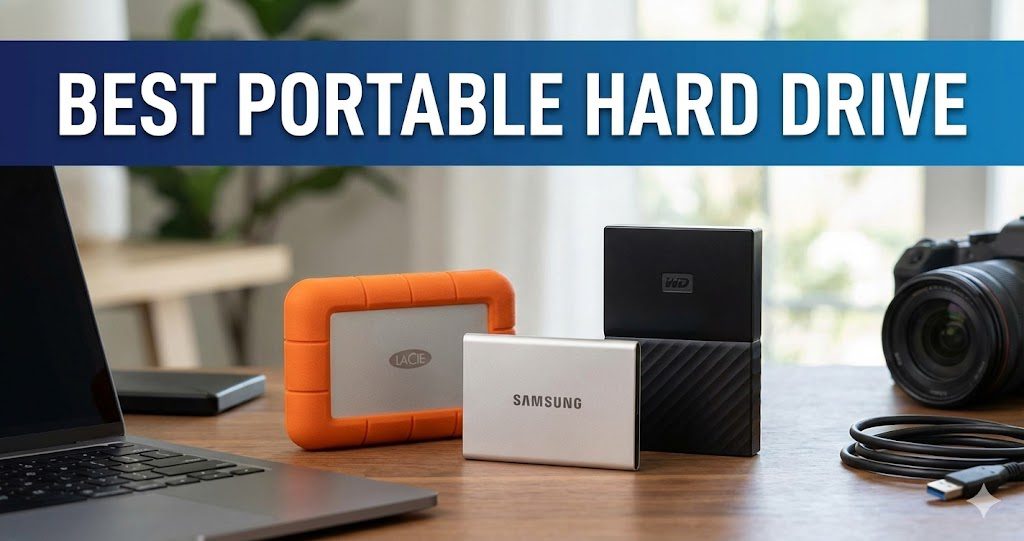
Running out of storage space is frustrating. Whether you’re a photographer with thousands of high-resolution images, a gamer with an ever-growing library, or a professional backing up critical work files, a reliable portable hard drive is no longer optional—it’s essential.
The problem? With so many options flooding the market, choosing the right external storage device can feel overwhelming. You’re faced with questions like: Should I get an HDD or SSD? How much storage do I actually need? What connection type offers the best speeds?
This comprehensive guide cuts through the confusion. We’ve researched, compared, and analyzed the top portable hard drives available in 2025 to help you make an informed decision. By the end of this article, you’ll know exactly which external storage solution fits your needs, budget, and lifestyle.
What Is a Portable Hard Drive?
A portable hard drive is an external storage device that connects to your computer, laptop, tablet, or gaming console via USB, USB-C, or Thunderbolt. Unlike internal drives that require technical installation, portable drives are plug-and-play devices designed for convenience and mobility.
These compact storage solutions serve multiple purposes: backing up important data, transferring large files between devices, expanding limited storage on laptops, and archiving photos, videos, and documents for safekeeping.
Portable hard drives come in two main categories: traditional hard disk drives (HDDs) that use spinning magnetic platters, and solid-state drives (SSDs) that rely on flash memory with no moving parts.
HDD vs SSD: Understanding the Key Differences
Before diving into specific recommendations, it’s crucial to understand the fundamental difference between HDDs and SSDs.
Traditional Hard Disk Drives (HDDs)
HDDs store data on spinning magnetic platters accessed by a read/write head. This mechanical design has been refined over decades, making HDDs incredibly cost-effective for large-capacity storage.
Advantages of HDDs:
- Significantly lower cost per gigabyte
- Available in massive capacities up to 24TB or more
- Excellent for archival storage and bulk data backup
- Proven reliability for long-term data storage
Disadvantages of HDDs:
- Slower read and write speeds (typically 100-180 MB/s)
- Vulnerable to physical shock and drops
- Heavier and bulkier than SSDs
- Mechanical noise during operation
Solid-State Drives (SSDs)
SSDs use flash memory chips to store data, eliminating all moving parts. This modern technology offers superior performance and durability.
Advantages of SSDs:
- Dramatically faster speeds (up to 2,000+ MB/s for premium models)
- Highly resistant to drops, shocks, and vibrations
- Compact, lightweight, and silent operation
- Lower power consumption
Disadvantages of SSDs:
- Higher cost per gigabyte
- Maximum capacities typically lower than HDDs
- Performance can degrade slightly over time
Which Should You Choose?
Choose an HDD if you need maximum storage capacity at the lowest price and primarily use the drive for archival purposes or stationary backups. Choose an SSD if you prioritize speed, durability, and portability, especially for active workloads like video editing or running applications directly from the drive.
Top Portable Hard Drives for 2026
Based on extensive research and expert reviews, here are the best portable hard drives currently available.
Best Overall: WD Elements Portable HDD
The Western Digital Elements portable hard drive consistently ranks as the top choice for everyday users. It delivers an excellent balance of performance, capacity, and affordability that’s hard to beat.
Key Specifications:
- Capacities: 1TB, 2TB, 4TB, 5TB
- Interface: USB 3.0
- Read/Write Speed: Up to 140 MB/s
- Weight: Approximately 132g (1TB model)
The WD Elements works seamlessly with both Windows and Mac systems (with reformatting for Mac). Its slim profile fits easily in laptop bags, and the bus-powered design means no external power adapter is required.
Best Value: Seagate Portable HDD
For budget-conscious buyers who want reliable performance without premium pricing, the Seagate Portable external hard drive offers exceptional value. It delivers above-average speeds at a below-average price point.
Key Specifications:
- Capacities: 1TB, 2TB, 4TB, 5TB
- Interface: USB 3.0
- Read/Write Speed: Up to 120 MB/s
- Drag-and-drop file backup
This no-frills drive focuses on what matters most: storing your data safely and transferring files quickly enough for everyday use.
Best Premium SSD: Samsung T9
The Samsung T9 represents the pinnacle of portable SSD technology. Designed for power users who demand the fastest possible transfer speeds, this drive delivers exceptional performance across demanding workloads.
Key Specifications:
- Capacities: 1TB, 2TB, 4TB
- Interface: USB 3.2 Gen 2×2 (20 Gbps)
- Read Speed: Up to 2,000 MB/s
- Write Speed: Up to 2,000 MB/s
- IP65 water and dust resistance
The T9 features a rubberized shell for shock protection, hardware encryption for security, and Samsung’s Magician software for drive management. It’s ideal for content creators handling large video files or photographers processing thousands of RAW images.
Best Budget SSD: Crucial X9
If you want SSD performance without the premium price tag, the Crucial X9 strikes a compelling balance between speed and affordability. It delivers 10 Gbps performance at a price point that undercuts most competitors.
Key Specifications:
- Capacities: 1TB, 2TB, 4TB
- Interface: USB 3.2 Gen 2 (10 Gbps)
- Read Speed: Up to 1,050 MB/s
- IP55 dust and water resistance
The X9’s attractive aluminum design feels premium despite its budget-friendly pricing. It’s an excellent choice for users upgrading from traditional HDDs who want faster performance without overspending.
Best for Mac Users: SanDisk Extreme Portable V2
The SanDisk Extreme Portable V2 excels in real-world testing and offers excellent cross-platform compatibility. Its compact form factor includes an integrated loop for attaching to bags or carabiners.
Key Specifications:
- Capacities: 500GB, 1TB, 2TB, 4TB
- Interface: USB 3.2 Gen 2 (10 Gbps)
- Read Speed: Up to 1,050 MB/s
- IP65 water and dust resistance
- Two-meter drop protection
The rubberized coating provides excellent grip and shock absorption, making this drive perfect for photographers, videographers, and content creators working in challenging environments.
Best for Gaming: WD Black P40
Gamers need fast, reliable storage that can keep up with modern titles. The WD Black P40 external SSD delivers speedy performance in a sturdy, portable package with customizable RGB lighting.
Key Specifications:
- Capacities: 500GB, 1TB, 2TB
- Interface: USB 3.2 Gen 2 (10 Gbps)
- Read Speed: Up to 2,000 MB/s
- RGB lighting with game drive software
The P40 works across PC, PlayStation 5, and Xbox Series X/S, though note that current-gen console games cannot run directly from external storage—the drive remains excellent for storing games and transferring them quickly.
Best High-Capacity Desktop: Seagate Expansion Desktop
When maximum storage capacity matters most, the Seagate Expansion Desktop delivers outstanding value. Available in capacities up to 28TB, this 3.5-inch desktop drive offers the lowest cost per terabyte available.
Key Specifications:
- Capacities: 6TB, 8TB, 10TB, 12TB, 14TB, 16TB, 18TB, 24TB, 28TB
- Interface: USB 3.0
- Read/Write Speed: Up to 280 MB/s
- External power required
This drive requires AC power and isn’t designed for travel, but for stationary backup and archival storage, nothing beats its combination of capacity and performance per dollar.
Best Rugged: LaCie Rugged Mini
Field professionals need storage that can survive real-world abuse. The LaCie Rugged Mini features a distinctive orange shock absorber that provides four-foot drop resistance and protection from crush forces up to one ton.
Key Specifications:
- Capacities: 1TB, 2TB, 4TB, 5TB
- Interface: USB 3.0
- Drop resistance: 4 feet (1.2m)
- Crush resistance: 1-ton car
Photographers, videographers, and researchers working in challenging conditions trust the Rugged Mini to protect their irreplaceable data.
Best Security-Focused: Apricorn Aegis Padlock Fortress
When data security is paramount, the Apricorn Aegis Padlock Fortress provides FIPS 140-2 Level 2 validation—the same standard used by government agencies. Its hardware-based encryption protects sensitive data without relying on software.
Key Specifications:
- Capacities: 500GB to 4TB
- 256-bit AES hardware encryption
- Physical keypad for PIN entry
- FIPS 140-2 Level 2 certified
- Operating system independent
This drive is essential for healthcare professionals, lawyers, government contractors, and anyone handling confidential information.
Comparison Table: Best Portable Hard Drives at a Glance
| Drive | Type | Capacity Options | Max Speed | Best For | Price Range |
|---|---|---|---|---|---|
| WD Elements | HDD | 1TB – 5TB | 140 MB/s | Everyday use | $ |
| Seagate Portable | HDD | 1TB – 5TB | 120 MB/s | Budget buyers | $ |
| Samsung T9 | SSD | 1TB – 4TB | 2,000 MB/s | Power users | $$$ |
| Crucial X9 | SSD | 1TB – 4TB | 1,050 MB/s | Value seekers | $$ |
| SanDisk Extreme V2 | SSD | 500GB – 4TB | 1,050 MB/s | Mac users, travel | $$ |
| WD Black P40 | SSD | 500GB – 2TB | 2,000 MB/s | Gamers | $$$ |
| Seagate Expansion Desktop | HDD | 6TB – 28TB | 280 MB/s | Mass storage | $$ |
| LaCie Rugged Mini | HDD | 1TB – 5TB | 130 MB/s | Field work | $$ |
| Apricorn Aegis Padlock | HDD/SSD | 500GB – 4TB | Varies | Security | $$$$ |
How to Choose the Right Portable Hard Drive
Selecting the perfect external storage device requires evaluating several factors based on your specific needs.
Consider Your Storage Needs
Think about what you’ll store and how much space you’ll need over time. Documents and photos require relatively modest storage, while video files and games consume space quickly.
General guidelines:
- 500GB – 1TB: Suitable for documents, photos, and moderate file backup
- 2TB – 4TB: Ideal for photographers, casual video editors, and gamers
- 5TB+: Necessary for videographers, professionals, and extensive media libraries
Evaluate Speed Requirements
If you primarily back up files occasionally, a traditional HDD provides adequate performance. However, if you work with large files regularly, edit video directly from the drive, or run applications, an SSD’s superior speed justifies the higher cost.
Assess Durability Needs
Consider where and how you’ll use the drive. Stationary home or office use doesn’t demand rugged construction, but frequent travel, outdoor work, or environments with potential for drops and impacts warrant investing in shock-resistant designs.
Check Compatibility
Verify that the drive works with your devices. Most portable hard drives use USB-A or USB-C connections, with many including adapters for both. Mac users should confirm Time Machine compatibility or be prepared to reformat drives formatted for Windows.
Set Your Budget
Determine how much you’re willing to spend while considering the cost per gigabyte. HDDs typically range from $0.02 to $0.04 per gigabyte, while SSDs range from $0.08 to $0.20 per gigabyte depending on performance tier and brand.
Understanding Connection Types and Speeds
The interface connecting your portable drive to your computer significantly impacts real-world performance.
USB Standards Explained
USB 2.0 (480 Mbps): Outdated for storage use; avoid drives limited to this standard.
USB 3.0 / USB 3.2 Gen 1 (5 Gbps): Adequate for HDDs and budget SSDs. Real-world speeds reach approximately 450 MB/s under ideal conditions.
USB 3.1 / USB 3.2 Gen 2 (10 Gbps): Suitable for mid-range SSDs. Real-world speeds approach 1,000 MB/s with capable drives.
USB 3.2 Gen 2×2 (20 Gbps): Required for premium SSDs to reach their full potential. Delivers speeds up to 2,000 MB/s.
USB4 (40 Gbps): The newest standard, offering Thunderbolt-like speeds over USB-C. Still relatively rare in external storage devices.
Thunderbolt Connectivity
Thunderbolt 3 and Thunderbolt 4 both deliver 40 Gbps speeds, with Thunderbolt 5 pushing to 80 Gbps (or 120 Gbps in asymmetric mode). Thunderbolt drives cost more but provide professional-grade performance for demanding workflows like 4K/8K video editing.
USB-C vs USB-A
USB-C is the modern reversible connector found on newer laptops, while USB-A is the traditional rectangular port. Most portable drives include cables or adapters for both connections. Prioritize USB-C for future compatibility if your current devices support it.
Tips for Maximizing Your Portable Hard Drive’s Lifespan
Protect your investment and your data with these best practices.
Handle with Care
Even rugged drives have limits. Avoid dropping, crushing, or exposing drives to extreme temperatures. For traditional HDDs, never move the drive while it’s actively reading or writing data.
Safely Eject Before Disconnecting
Always use your operating system’s “Safely Remove Hardware” or “Eject” function before unplugging the drive. Improper removal can corrupt data and damage the file system.
Store in Appropriate Conditions
Keep drives in cool, dry environments away from direct sunlight, moisture, and magnetic fields. When not in use, store drives in protective cases or padded sleeves.
Maintain Regular Backups
Never rely on a single copy of important data. Follow the 3-2-1 backup rule: keep three copies of your data on two different types of media, with one copy stored offsite or in the cloud.
Monitor Drive Health
Use manufacturer software or third-party tools to check SMART data and drive health regularly. Replace drives showing signs of failure before data loss occurs.
Common Uses for Portable Hard Drives
External storage devices serve diverse purposes across personal and professional contexts.
Data Backup and Recovery
Regular backups protect against hardware failure, malware, and accidental deletion. Many portable drives include backup software that automates the process.
Media Storage
Photographers and videographers rely on external drives to store massive libraries of images and footage. The portability allows for field backup and easy transfer between editing workstations.
Gaming Library Expansion
Modern games frequently exceed 100GB, quickly filling console and PC storage. External drives let gamers maintain larger libraries without constantly deleting and reinstalling titles.
File Transfer Between Devices
Moving large files between computers remains faster with physical drives than cloud uploads, especially for multi-gigabyte video files or extensive photo collections.
Portable Workstation
Some users run applications or even entire operating systems from fast SSDs, creating portable workstations that can boot on any compatible computer.
Frequently Asked Questions
How long do portable hard drives typically last?
Traditional HDDs generally last three to five years with regular use, though proper handling can extend this significantly. SSDs typically last five to ten years or more, as they lack the mechanical components prone to wear. Both drive types should be replaced if they show signs of failure or reach their rated write endurance.
Can I use the same portable hard drive on both Windows and Mac?
Yes, but formatting matters. Drives formatted as exFAT work natively on both Windows and Mac systems without requiring special software. Drives formatted as NTFS (Windows default) require third-party software to write on Mac, while drives formatted as APFS or HFS+ (Mac formats) need third-party software to work on Windows.
Is an SSD worth the extra cost over an HDD?
For most users, yes. The dramatically faster speeds (often 10x or more), superior durability against drops and shocks, and silent operation justify the price premium for active use. However, if you need maximum capacity for archival storage and rarely access the files, an HDD’s lower cost per gigabyte makes more sense.
Do I need a portable hard drive if I already use cloud storage?
Cloud and local storage serve complementary purposes. Cloud storage provides offsite backup and anywhere access but requires internet connectivity and ongoing subscription costs. Local portable drives offer faster transfers for large files, work offline, and involve a one-time purchase. Most experts recommend using both for comprehensive data protection.
What’s the difference between bus-powered and AC-powered external drives?
Bus-powered drives draw electricity through the USB cable from your computer, eliminating the need for separate power adapters. This makes them truly portable. AC-powered drives require connection to wall outlets but can support larger, faster 3.5-inch drives that need more power. Choose bus-powered for portability; choose AC-powered for maximum desktop performance and capacity.
How much storage capacity do I actually need?
Start by calculating your current data and expected growth. A photographer shooting 50GB per month needs a different solution than someone backing up documents quarterly. For most personal users, 2TB provides comfortable headroom. Professionals working with video should consider 4TB minimum, while casual users backing up a single computer can often manage with 1TB.
Conclusion: Finding Your Perfect Portable Storage Solution
Choosing the best portable hard drive comes down to understanding your specific needs and priorities. For everyday backup and storage at an affordable price, the WD Elements remains the gold standard among traditional HDDs. Budget-conscious shoppers will find excellent value in the Seagate Portable line.
Those seeking SSD performance should consider the Samsung T9 for maximum speed or the Crucial X9 for balanced value. Gamers benefit from the WD Black P40’s optimized design, while creative professionals working in challenging environments can trust the LaCie Rugged Mini or SanDisk Extreme Portable V2.
Remember that the best portable hard drive is ultimately the one that meets your unique combination of capacity requirements, speed needs, durability expectations, and budget constraints. Whatever you choose, implementing regular backup practices and proper handling will protect your valuable data for years to come.
Ready to upgrade your storage? Consider your workflow, calculate your space requirements, and invest in a drive that grows with your needs. Your data deserves reliable protection.
This article contains independently researched recommendations. Product specifications and prices may change. Always verify current details with manufacturers before purchasing.